How Google Chrome kana autofill works
Question: how does Chrome decide what to put into a "仮名 (kana, kana script)" or "振り仮名 (furigana, reading aid; furigana)" field? The browser looks for common field names like "kana", "furigana", "name_kana," and similar HTML input names, then offers a suggestion based on phonetic name data stored in your Google profile and Contacts.
Where Chrome pulls the kana from
Anecdote: I once filled ten ryokan reservation forms by hand, so I celebrated when Chrome offered to type the kana for me. Chrome uses phonetic name fields that you can set in Google Contacts, often labelled phonetic first name and phonetic last name in the contact editor. That means the kana text isn't magically inferred from your 漢字 (kanji, kanji; Chinese characters); Chrome reads the phonetic entries you've provided.
How to add phonetic names so autofill works
Direct advice: open contacts.google.com, pick your profile or an entry, click edit, and find the phonetic name fields. Enter the kana equivalents in ローマ字 (romaji, romaji; Latin letters) if you prefer to keep things simple, or paste kana you've generated with an IME. Pro tip: save separate phonetic entries for family and given names; sites usually expect those in distinct fields. My verdict:
Why this matters for Japanese learners
Fact: Japanese websites frequently ask for phonetic readings, especially for travel bookings, parcel deliveries, and membership registrations. What many overlook is that getting furigana wrong can lead to misrouted packages or confused staff at a post office, which is annoying when you live abroad or are ordering from rakuten.
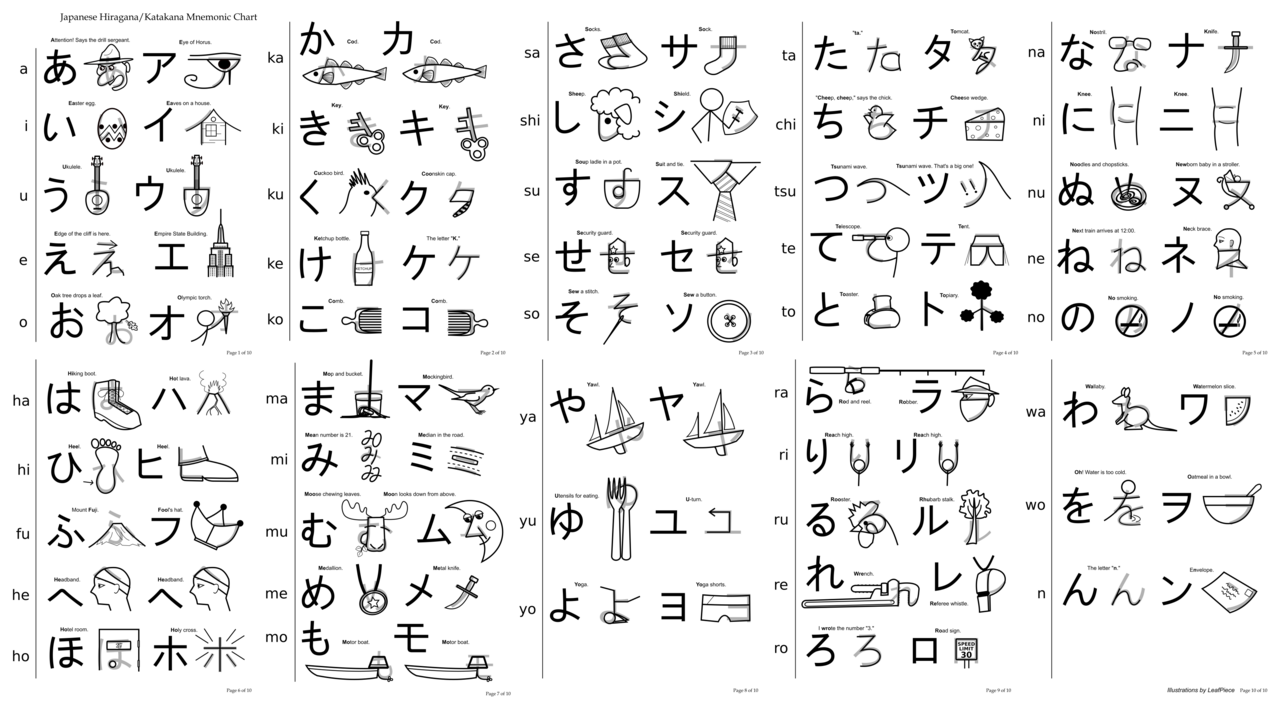
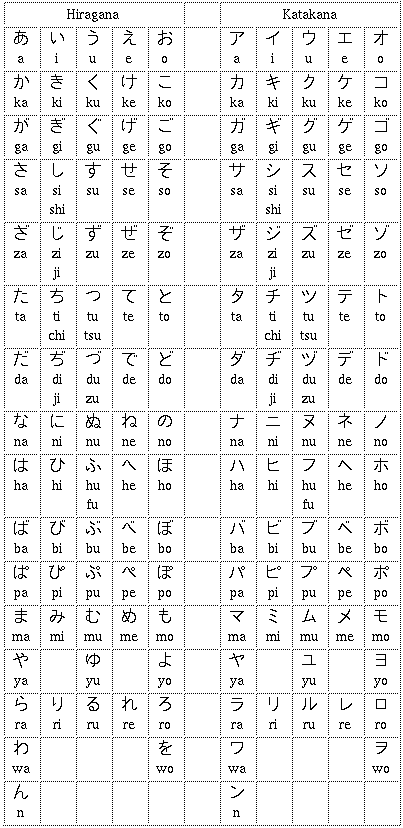
Know that feeling when you can't remember whether to use 片仮名 (katakana, katakana) or 平仮名 (hiragana, hiragana) for a name? Let me show you why Chrome's autofill is useful; it removes that tiny but persistent friction. A great example is booking a futon delivery at a lodging, which often requires reading in kana only. Chrome's autofill cuts that time down, not bad, right?
My tip: if you're learning Japanese, treat the phonetic fields as a study aid. Enter carefully checked kana in your Google profile and use that data to reinforce correct readings when you register on Japanese sites. Personally, I use the process as a quick audit, and it catches mistakes I might make when converting names on the fly.
Privacy, pitfalls and practical tips
Question: is it safe to store phonetic readings in your Google account? The short answer is yes, as long as you understand it's saved to your Google profile and synced across devices tied to that account. That brings us to a practical trade-off: convenience versus the fact that more personal data lives in one cloud account.
Anecdote: I once lost temporary access to an account and realised how dependent I had become on autofill, so I now keep an offline note with the kana versions of my most-used names. Pro tip: if you're privacy-conscious, create a separate Google profile for Japanese-specific autofill data; this keeps study and travel entries isolated from your main account.
What most people don't know is that some sites use custom or non-standard field names, so Chrome might not detect the kana box. In those cases, copy-paste from your Contacts entry or use an IME to input kana directly. Sounds weird, but it's true. My verdict:
How this changes everyday Japanese tech life
Direct observation: autofill kana support is a small change, but it reduces repeated mistakes when typing furigana, especially for non-native names and temporary student addresses. That brings us to another benefit: language learners get consistent examples of correct readings, which helps with listening and speaking practice when you cross-check the kana you entered.
Plot twist: autofill won't teach you grammar, but it will save you time and mental energy for the parts of Japanese that actually need study. What I especially like is that the feature works silently in the background on desktop Chrome and syncs to your phone, so filling a multi-step registration becomes routine.
Frequently Asked Questions
Do I need a special Chrome version for kana autofill?
Short answer: most stable Chrome releases include autofill improvements. Check Chrome settings and update to the latest version if you don't see the option.
Where do I enter my kana so Chrome can use it?
Short answer: add phonetic name fields in your Google Contacts or edit your Google profile, then save. Chrome reads those entries for autofill suggestions.