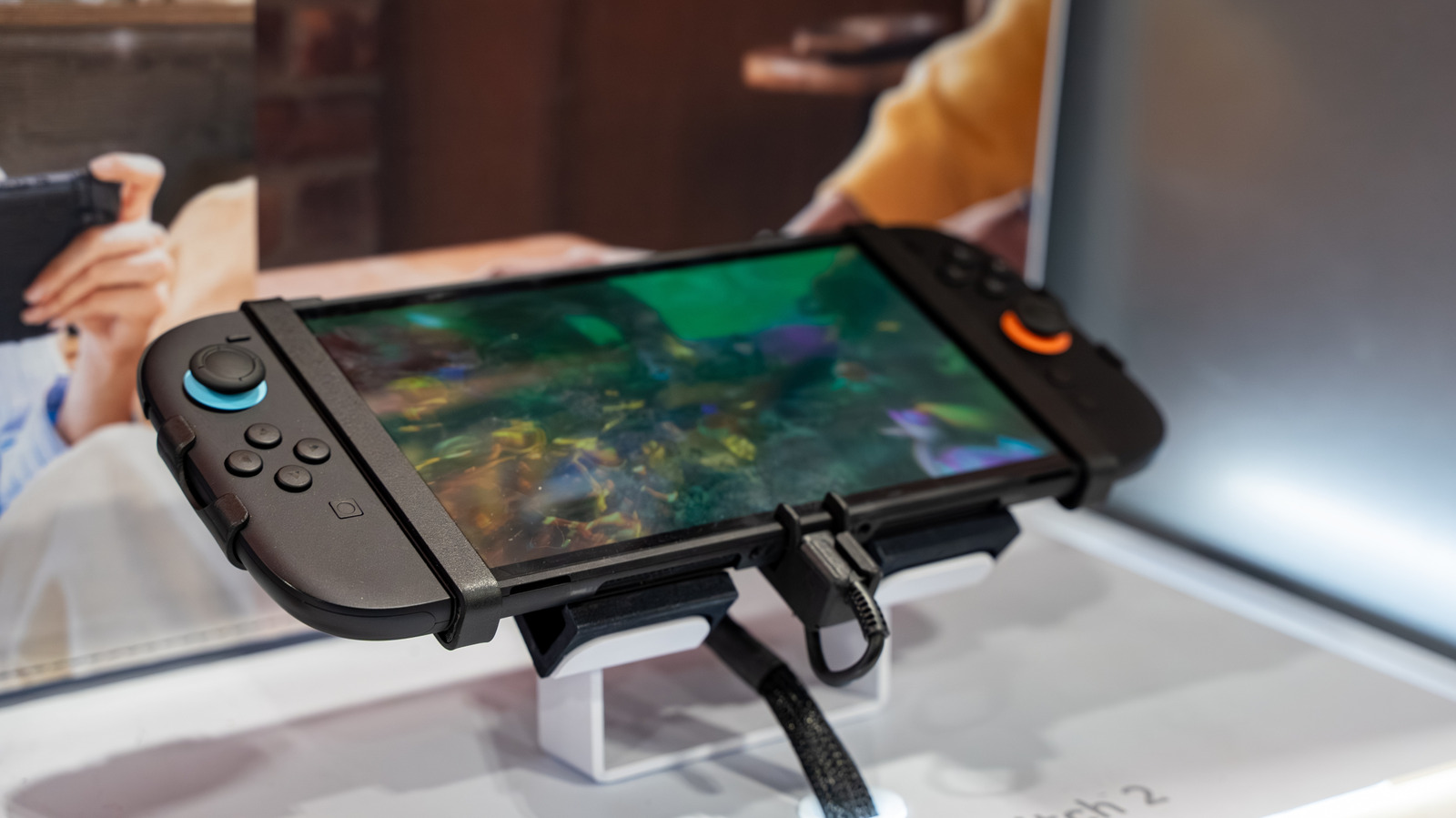
Enable 120 Hz Support and Adjust Refresh Rates
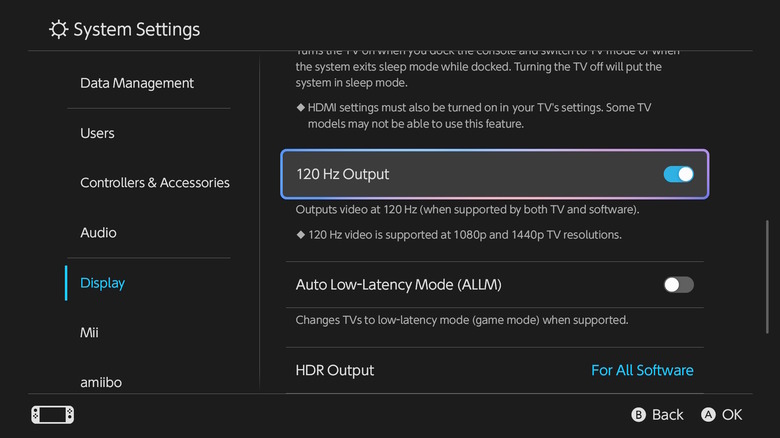
Have you tried switching your display to 120 Hz yet? The Switch 2 can output higher refresh rates on compatible TVs and monitors, and enabling 120 Hz reduces motion blur and makes fast-action games like Splatoon run much smoother.
![Dragon Ball Z: Kakarot [Master Edition]](https://s.pacn.ws/1/p/1eh/dragon-ball-z-kakarot-master-edition-908785.1.jpg?v=t8ja8t&width=400)
![Startup Company [Console Edition] (Limited Edition)](https://s.pacn.ws/1/p/157/startup-company-console-edition-limited-edition-741799.16.jpg?v=ry4mm8&width=400)
![Startup Company [Console Edition]](https://s.pacn.ws/1/p/157/startup-company-console-edition-741779.10.jpg?v=ry4ngq&width=400)
Here’s the kicker: not every game or docked mode uses 120 Hz automatically, so check both System Settings and each game’s graphics options. A great example is action titles that target 60 fps. Forcing a 120 Hz-compatible panel often gives crisper frames even if the game is internally capped at 60, because the display refresh timing improves perceived latency. From my experience...
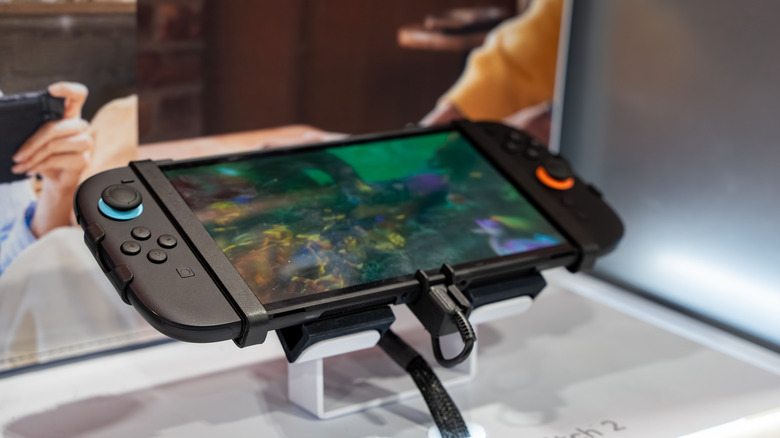
How to enable 120 Hz
Picture this: you go to System Settings > Screen > TV Resolution and set the refresh rate to 120 Hz if your TV supports it. Hand on heart, double-check your HDMI 2.1 cable and TV mode, otherwise you’ll get a black screen or stutter. See what I mean?
Graphics and FPS Improvements: Prioritise Frame Rate
Fact: many Switch 2 games include performance vs quality toggles in their options, especially third-party ports from studios like Ubisoft and Electronic Arts. Let me show you why choosing performance mode usually feels better for gameplay, even if textures look a little softer.
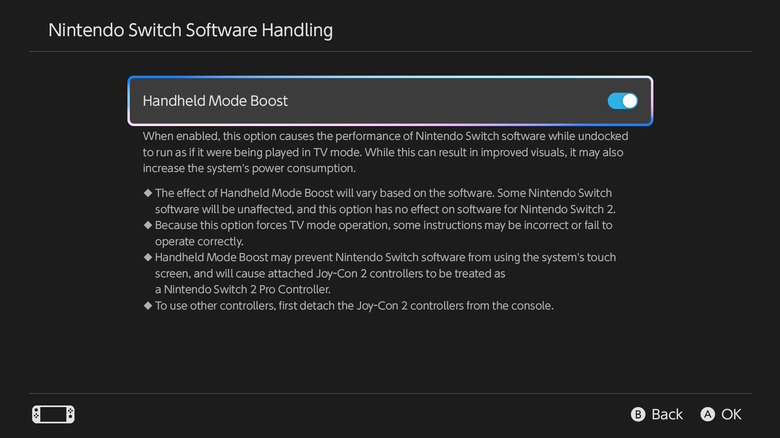
No joke, set games to prioritise FPS where available, target 60 fps for shooters and racers, and keep V-Sync off in titles that offer a low-latency mode. My tip: if a title has an uncapped frame option, use it only on a stable monitor and after confirming temperatures under load. Convinced yet?
Per-game tweaks
I still remember exactly how Elden Ring played smoother after I switched a PC-style cap off on my console port, and the same logic applies here. That’s why you should check patch notes and developer menus for any Switch 2-specific settings added after release. From my experience...
Power and Performance Optimisation: Battery, Fans and Throttling
Anecdote: I once left my Switch 2 in handheld mode under a duvet and performance tanked after 20 minutes, with heat throttling the SoC. Let’s be honest, thermal behaviour matters more on compact consoles than on big PCs.
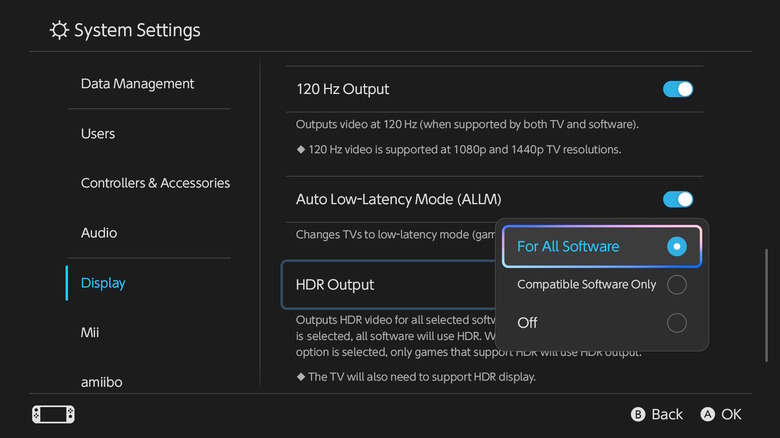
And it gets better: use the built-in Performance Mode, if present, for demanding sections, and choose the Balanced option for long handheld sessions to extend battery life. If you care about longevity, avoid charging cycles that keep the system at 100 per cent for days. From my experience...
Practical steps for heat and battery
Directly address ventilation: play on a hard, flat surface, consider a small USB-C fan, and watch battery percentages during long sessions. Oh, almost forgot, lowering screen brightness from maximum saves surprisingly more battery than turning off Wi-Fi in many cases. See what I mean?
System and Display Tweaks That Add Polish
Direct address: check System Settings for HDR tone mapping and dynamic range adjustments right after enabling 120 Hz, because some TVs change colour profiles per refresh rate. What I especially like is that toggling HDR off can reduce frame jitter in a few ports that haven’t been fully optimised.
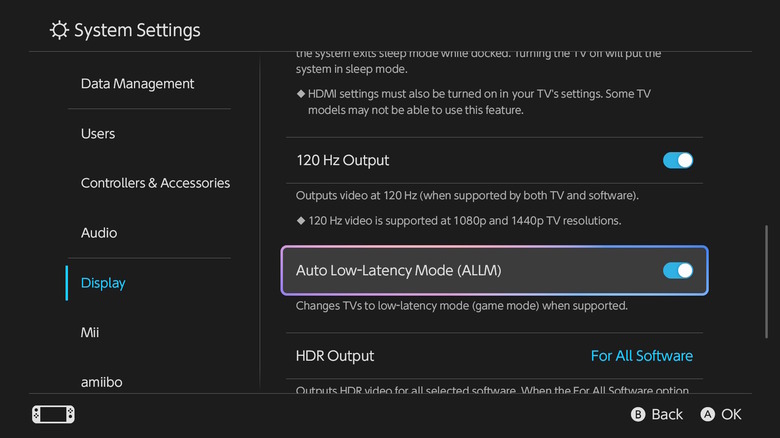
That’s why you should calibrate your display and test in a few titles, such as Mario Kart and Zelda entries that often expose frame pacing issues. A great example is changing the internal resolution scaler in some ports, which boosts frame stability with minimal visual loss. Simply brilliant.
Picture this: you pair these four changes and get snappier menus, steadier frame timing, and longer playable sessions without constant recharging. Wild, isn’t it?
What I especially like is that these tweaks don’t require modding or risky software, they’re in menus you already have. Classic Japan, isn’t it?
more Japan news on jpnerd.comIn pictures
Frequently Asked Questions
Will enabling 120 Hz damage my Switch 2?
No. If your TV or monitor supports 120 Hz and you use a compatible HDMI cable, enabling 120 Hz is safe. Just monitor temperature in long sessions.
Does Performance Mode reduce battery life a lot?
Yes, Performance Mode increases power draw for better FPS, so expect shorter battery times compared with Balanced or Battery Saver modes.